
Archive
This post is archived and may contain outdated information. It has been set to 'noindex' and should stop showing up in search results.
This post is archived and may contain outdated information. It has been set to 'noindex' and should stop showing up in search results.

Run a Minecraft Server on Your PC and Play with Friends over the Internet or a LAN
Nov 15, 2018PC GamingComments (461)
Setting up a Minecraft server on your home Windows computer is fairly easy. With basic knowledge of computers and networking, you can be playing with friends over a local area network (LAN) or the Internet in minutes.
Note: This guide is for the Java version of Minecraft, which is the original version for PC. Each player that wants to connect must have purchased Minecraft Java Edition for their PC from minecraft.net. The console and mobile versions are not compatible with the Java version, and for those you'll need to use Minecraft Realms.
Computer Performance Requirements
Make sure your computer has at least a 2 GHz dual-core processor, 2 GB of memory (RAM), and a good Internet connection. I recommend a wired network to cut down on latency. Depending on how many players you'll have on your server, you may need more power than that. Stopping as many running and background programs as possible will also help.
If you plan to also play Minecraft on the same computer that the server is on, I recommend having 4 GB of RAM at a minimum and a fairly new processor and graphics card.
If your computer isn't up to the task, check out Amazon's top-rated gaming PCs.
Go to java.com/en/download and get the latest version of Java.
Download the latest version of the server from the official download page. It will be a server.jar file. Put that downloaded file in a folder where you'd like to run the Minecraft server.
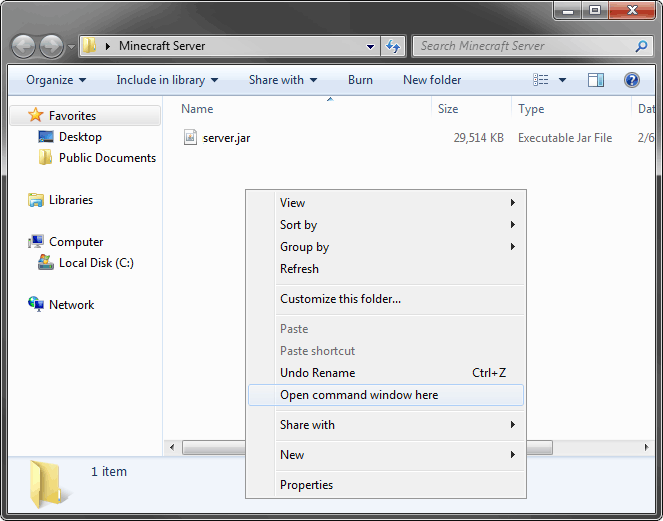
Open a Windows command prompt in the folder where you put the server jar file. To easily do this, hold down shift while you right-click in an empty space inside the folder:
Once in the command prompt, run this command to start the server:
You can paste the command into the command prompt by right-clicking and choosing paste (ctrl+v does not work in command prompts).
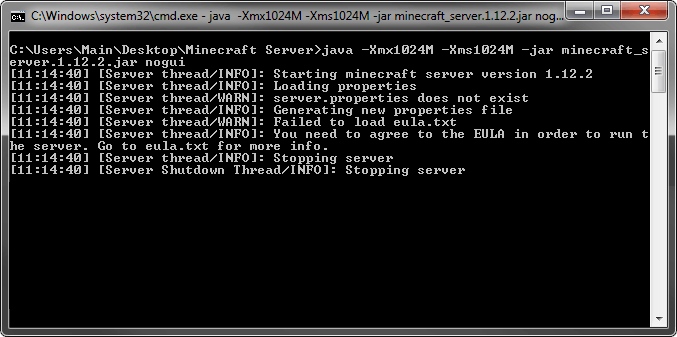
Once ran, the Minecraft server will create some files in the folder it resides in and you should receive an error message about the EULA:
You will have to open the generated eula.txt file and set:
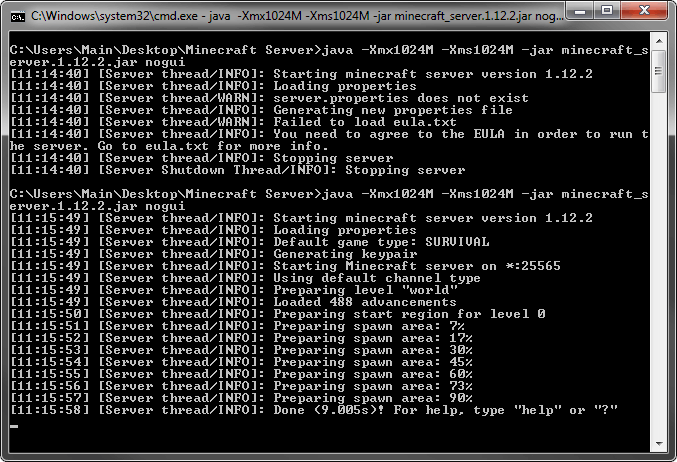
After doing that, run the command again. This time a new world should be generated and your server should be running:
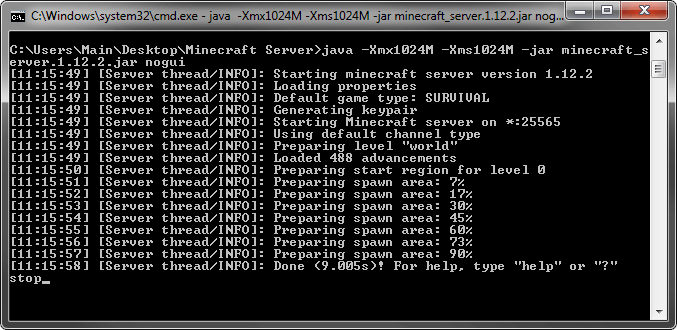
The server is controlled using server commands that you enter in the command prompt. View the basic server commands here and familiarize yourself with them. At the very least, know how to use stop, which safely closes down the server and saves the world.
Open the regular Minecraft game, click Multiplayer, then click Direct Connect. You'll be entering an IP address here based on where you are relative to the server computer.
On the same computer
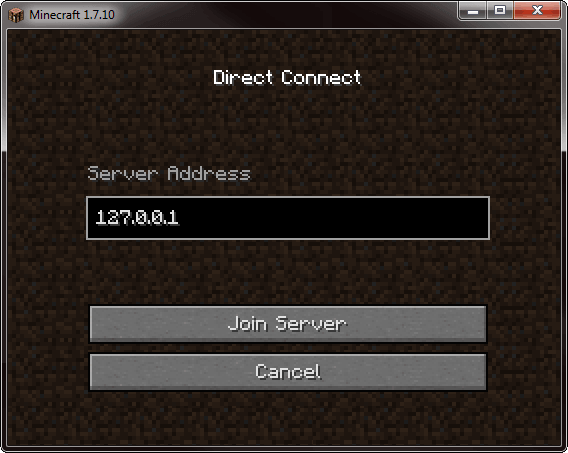
If you're playing Minecraft on the same computer as the Minecraft server, enter 127.0.0.1:
On another computer in the network
If you're on another computer in the local network (connected to the same router), enter the local IP address of the computer that's running the server. To find this, go to the computer that's running the server and type ipconfig into a command prompt. The IP address should look similar to 192.168.1.1, though the last two numbers could be different.
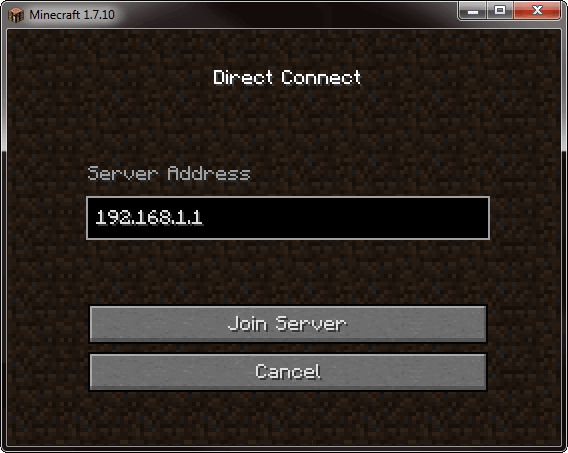
(The above is an example IP address only)
Over the Internet
To connect to the Minecraft server over the Internet, you'll need to know the external IP address of the computer the Minecraft server is on. You can find it by browsing to whatismyip.com while on the Minecraft server PC. Just like the local IP address, it will be 4 sets of numbers separated by periods. It may look something like 65.214.224.57 but each set of numbers will be different.
If the computer that the Minecraft server is on is connected via a router to the Internet modem, which it should be for security reasons, then you'll have to make sure the router is properly port forwarding Minecraft Internet traffic to the computer that has the Minecraft server on it (even if you only have the one computer).
Port forwarding is something your router does so that it sends the right type of traffic to the right computer. Minecraft uses port 25565, so the router needs to be setup to send any traffic on port 25565 to the computer that has the Minecraft server.
Go to portforward.com, scroll down and select your router model. The model number is usually listed on the front or back of your router. If you are shown an advertisement for a port forwarding program, click "skip this advertisement" at the top.
Next, select the game you want to port forward for, which is "Minecraft Server" in this case. It may tell you that you need a static IP address. It's referring to the internal IP address. Every time a computer is connected to your router, or turned on, the router assigns it a local IP address. It usually stays the same but can sometimes change. So you may have to update the settings if you were to disconnect the computer from the router or shut it down. If you run Minecraft server a lot and shut down your computer often, you may want to look into giving your computers static local IP addresses.
Once you've forwarded port 25565 to the correct computer, you can test it at www.yougetsignal.com/tools/open-ports. Be sure to check for port 25565 (80 is the default port for website traffic). For additional troubleshooting, see the Minecraft server install wiki.
Keep in mind that both your external and local IP addresses may change when you shut down your computer or reset your modem. Each time you start your server, be sure to double-check your internal and external IP address, and update settings accordingly.
Now that your Minecraft server is properly setup, you can send your external IP address to your friends and have them connect to your Minecraft server over the Internet:
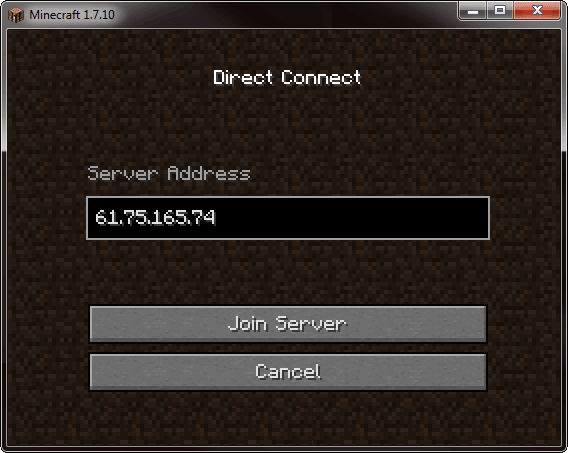
(The above is an example IP address only)
Note: This guide is for the Java version of Minecraft, which is the original version for PC. Each player that wants to connect must have purchased Minecraft Java Edition for their PC from minecraft.net. The console and mobile versions are not compatible with the Java version, and for those you'll need to use Minecraft Realms.
Computer Performance Requirements
Make sure your computer has at least a 2 GHz dual-core processor, 2 GB of memory (RAM), and a good Internet connection. I recommend a wired network to cut down on latency. Depending on how many players you'll have on your server, you may need more power than that. Stopping as many running and background programs as possible will also help.
If you plan to also play Minecraft on the same computer that the server is on, I recommend having 4 GB of RAM at a minimum and a fairly new processor and graphics card.
If your computer isn't up to the task, check out Amazon's top-rated gaming PCs.
Step 1: Get the Latest Version of Java
Go to java.com/en/download and get the latest version of Java.
Step 2: Download the Minecraft Server
Download the latest version of the server from the official download page. It will be a server.jar file. Put that downloaded file in a folder where you'd like to run the Minecraft server.
Step 3: Run the Server
Open a Windows command prompt in the folder where you put the server jar file. To easily do this, hold down shift while you right-click in an empty space inside the folder:
Once in the command prompt, run this command to start the server:
java -Xmx1024M -Xms1024M -jar server.jar noguiYou can paste the command into the command prompt by right-clicking and choosing paste (ctrl+v does not work in command prompts).
Using PowerShell Instead of Command Prompt
If the command prompt didn't work or you would prefer to use PowerShell, you can and it works similarly. Just make sure you have PowerShell open in the directory where server.jar is. This may be accomplished differently on different Windows versions. Search online if you're unsure how. Once in the proper directory, run the same command from above. Note: To paste into PowerShell you only need to right-click inside the window.
If the command prompt didn't work or you would prefer to use PowerShell, you can and it works similarly. Just make sure you have PowerShell open in the directory where server.jar is. This may be accomplished differently on different Windows versions. Search online if you're unsure how. Once in the proper directory, run the same command from above. Note: To paste into PowerShell you only need to right-click inside the window.
Once ran, the Minecraft server will create some files in the folder it resides in and you should receive an error message about the EULA:
You will have to open the generated eula.txt file and set:
eula=trueAfter doing that, run the command again. This time a new world should be generated and your server should be running:
Step 4: Server Commands
The server is controlled using server commands that you enter in the command prompt. View the basic server commands here and familiarize yourself with them. At the very least, know how to use stop, which safely closes down the server and saves the world.
Step 5: Connect to Your Server
Open the regular Minecraft game, click Multiplayer, then click Direct Connect. You'll be entering an IP address here based on where you are relative to the server computer.
On the same computer
If you're playing Minecraft on the same computer as the Minecraft server, enter 127.0.0.1:
On another computer in the network
If you're on another computer in the local network (connected to the same router), enter the local IP address of the computer that's running the server. To find this, go to the computer that's running the server and type ipconfig into a command prompt. The IP address should look similar to 192.168.1.1, though the last two numbers could be different.
(The above is an example IP address only)
Over the Internet
To connect to the Minecraft server over the Internet, you'll need to know the external IP address of the computer the Minecraft server is on. You can find it by browsing to whatismyip.com while on the Minecraft server PC. Just like the local IP address, it will be 4 sets of numbers separated by periods. It may look something like 65.214.224.57 but each set of numbers will be different.
If the computer that the Minecraft server is on is connected via a router to the Internet modem, which it should be for security reasons, then you'll have to make sure the router is properly port forwarding Minecraft Internet traffic to the computer that has the Minecraft server on it (even if you only have the one computer).
Port forwarding is something your router does so that it sends the right type of traffic to the right computer. Minecraft uses port 25565, so the router needs to be setup to send any traffic on port 25565 to the computer that has the Minecraft server.
Go to portforward.com, scroll down and select your router model. The model number is usually listed on the front or back of your router. If you are shown an advertisement for a port forwarding program, click "skip this advertisement" at the top.
Next, select the game you want to port forward for, which is "Minecraft Server" in this case. It may tell you that you need a static IP address. It's referring to the internal IP address. Every time a computer is connected to your router, or turned on, the router assigns it a local IP address. It usually stays the same but can sometimes change. So you may have to update the settings if you were to disconnect the computer from the router or shut it down. If you run Minecraft server a lot and shut down your computer often, you may want to look into giving your computers static local IP addresses.
Once you've forwarded port 25565 to the correct computer, you can test it at www.yougetsignal.com/tools/open-ports. Be sure to check for port 25565 (80 is the default port for website traffic). For additional troubleshooting, see the Minecraft server install wiki.
Keep in mind that both your external and local IP addresses may change when you shut down your computer or reset your modem. Each time you start your server, be sure to double-check your internal and external IP address, and update settings accordingly.
Now that your Minecraft server is properly setup, you can send your external IP address to your friends and have them connect to your Minecraft server over the Internet:
(The above is an example IP address only)